You create a task in Planner, a colleague has a question about it, the two of you sort it out in a Teams chat. Two weeks later someone asks why the task was done that way. Nobody remembers where that answer went. The Teams channel has long moved on, the email thread is lost, the note sits in a notebook nobody opens any more.
Anyone who juggles several projects at once knows this context problem. And that is exactly why Microsoft introduced task chat in Planner in early 2026. You discuss tasks right where they live: in the task itself. No channel searching, no reconstructing context, no «who decided that again?»
In this post I show you how to get task chat going in five steps and how to use it so your team really benefits.
What is task chat and who has access?
Task chat is a conversation area that sits directly inside every Planner task. You can write messages, pull team members in with an @mention, react to messages and share files from OneDrive or SharePoint as links. Each task has exactly one chat thread. The first message starts it.
The most important point first: task chat comes with basic plans in Planner, so you do not need a Planner Premium licence. According to Microsoft Support it is currently available only in basic plans, not yet in premium plans (as of November 2026). It was part of the big Planner update that Microsoft started rolling out in mid January 2026. If you use Planner in Teams or at planner.cloud.microsoft, that is where you get the feature.
Quick guess: you write a message in task chat without an @mention. Who gets a notification?
Step 1: Open task chat inside a task
Here is how you get to task chat: 🚀
- Open Microsoft Planner in Teams (app bar on the left, search for «Planner») or go straight to planner.cloud.microsoft.
- Pick a plan and click any task. The details panel opens.
- Task chat appears right away on the right-hand side of the panel, next to the task details.
- Click into the task chat input field to write your first message.
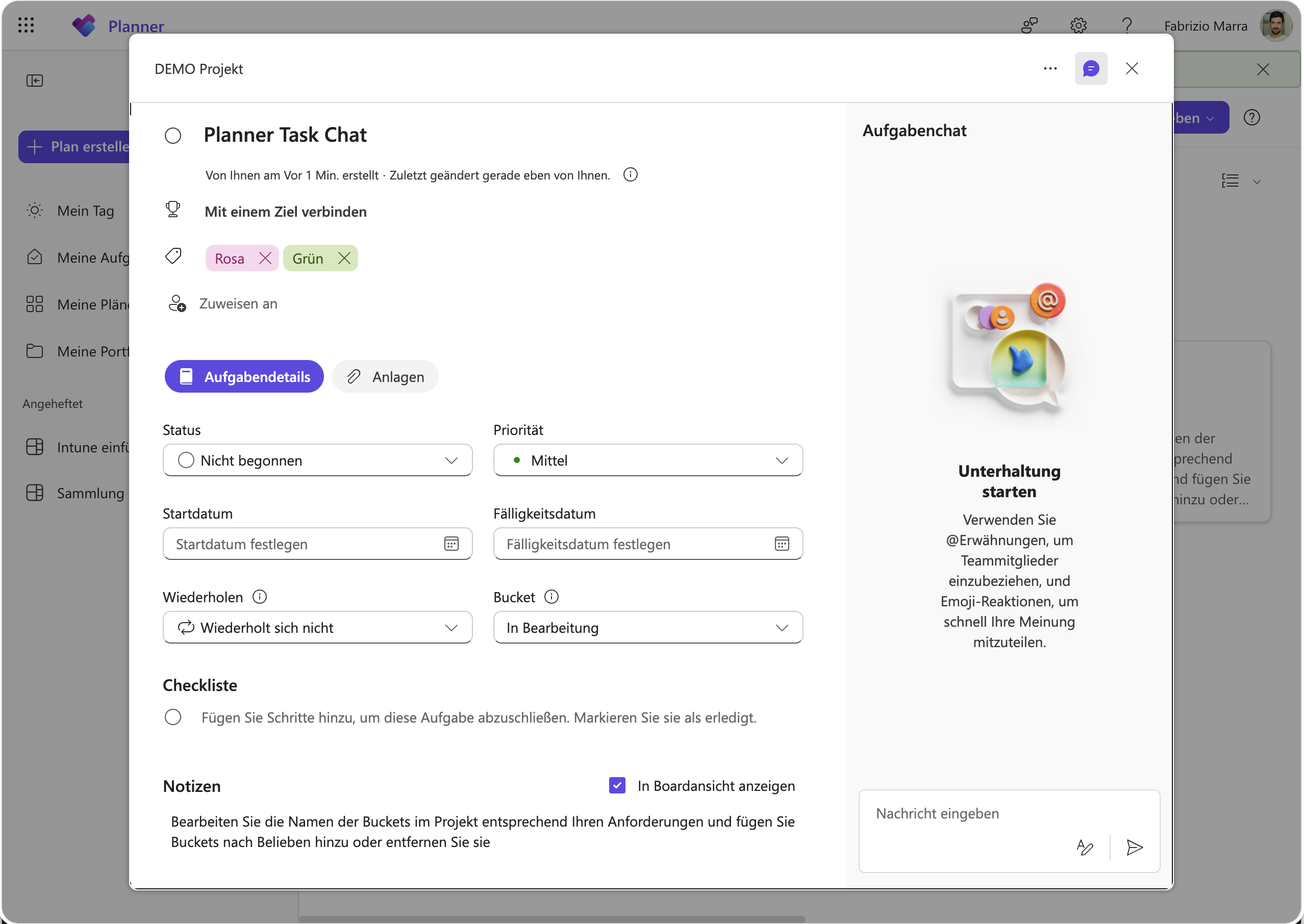
If you cannot see task chat yet, check whether you are working in a basic plan. The update has been rolling out in waves since January 2026. In April 2026 Microsoft still listed the rollout as ongoing in the roadmap.
Step 2: Write your first message and capture context
Task chat works like the familiar Teams chat, but it is permanently tied to the task. All messages stay visible for as long as the task exists. 💬
- Click into the input field below «Conversation».
- Write your message, for example: «Template is ready, please review by Friday.»
- Send it with Enter or the send icon.
The message appears in the task’s chat history. Everyone with access to the task sees the entry, not only the people the task is assigned to. Guests with access to the task can join in too. Only the author of a message can edit or delete it. Edited messages are marked, deleted ones leave a placeholder.
What I value most: the history stays complete. Anyone who comes to the task two weeks later reads everything, questions, decisions, corrections, in one single, ordered view.
Step 3: Bring in specific team members
For concrete questions to a particular person you use the @mention. It works exactly as it does in Teams or Outlook. 👋
- In the comment field type @ followed by the person's name.
- A list of plan members appears. Select the person you want. You can also mention several people in one message.
- Write your question and send the message.
The mentioned person gets a notification in Teams and by email. One click on the notification takes them straight to the task in question, no channel hunting, no scrolling.
Tip: use @mentions deliberately. A message without a mention triggers no notification, it simply sits in the history. An @mention signals: «I need a specific response from you.» That stops important questions from disappearing into the noise.
Step 4: Use rich text, reactions and attachments
Task chat can do more than plain text. You can structure messages and react to them, much like in Teams channels.
Formatting options: 📝
- Bold for anything nobody should miss
- Bulleted lists for structured feedback
- Headings and links, for example to the file in question
You react to messages with emoji, a thumbs up, a heart, a «yes» emoji is often enough as confirmation. That keeps the chat clean and saves short «OK, thanks» messages.
You share files from OneDrive and SharePoint as links in your message. The link then sits neatly in the conversation history and not somewhere in an email thread nobody can find any more. Depending on the version, the input field also has an icon for attachments.
Exercise
Task chat or Teams?
Step 5: Configure notifications sensibly
Task chat follows a clear rule: only people who are explicitly @mentioned get a notification, both in Teams and by email. Microsoft changed this compared with the old task comments in response to customer feedback (Microsoft Support). Planner also has other email notifications, for example for assignments and due dates. Those can get noisy fast on active projects.
Here is how you adjust notifications: ⚙️
- Open Planner and click Settings in the top right (depending on the version the entry is named slightly differently).
- Choose Notifications.
- Turn the email notifications you want on or off, for example when somebody assigns you a task or when a task becomes due.
My recommendation: turn on notifications for task assignments, but switch off the general due-date pings if you work across five or more active plans. That way you stay informed without being interrupted constantly.
Practical tip: task chat as a decision log
My personal favourite use case: use task chat as a decision log. Instead of settling things verbally or scattering them across Teams messages, write the decision straight into the task as a comment, for example: «14 June 2026: team decided to move the deadline to Friday because customer feedback is still outstanding.» Anyone opening the task three weeks later understands why immediately, without having to search anywhere.
That sounds simple, but it changes the work noticeably: fewer «who decided that?» moments, fewer meeting minutes nobody reads and less lost information when somebody on the team moves on.
Two things worth knowing: if you move a task to another plan, its task chat does not move with it. And older task comments from before task chat remain readable, they open via a link in Outlook. New messages go into task chat only.
Conclusion
Task chat in Microsoft Planner solves a problem many teams had accepted as unavoidable: lost context. When the discussion hangs off the task itself, the channel searching stops. Decisions are traceable, questions are answered and visible. New team members find their way without a lengthy briefing. Open task chat on your next Planner task and write the first comment there instead of in Teams. Give it a go right now.
Quick check